Skip to content

How it works

From account to first order, step by step.

Here is a restaurant's complete journey on Menly: what you do, what your customers see, and what happens during service.

  • Guided setup
  • No hardware to install
  • Editable at any time
  1. 1Account

    Create your account

    Sign up with your email address: Menly sends you a verification code, then you choose your password. You land in your management dashboard.

    • Email address verified with a code
    • No bank card required to prepare your menu
    • Interface in French, English or Arabic
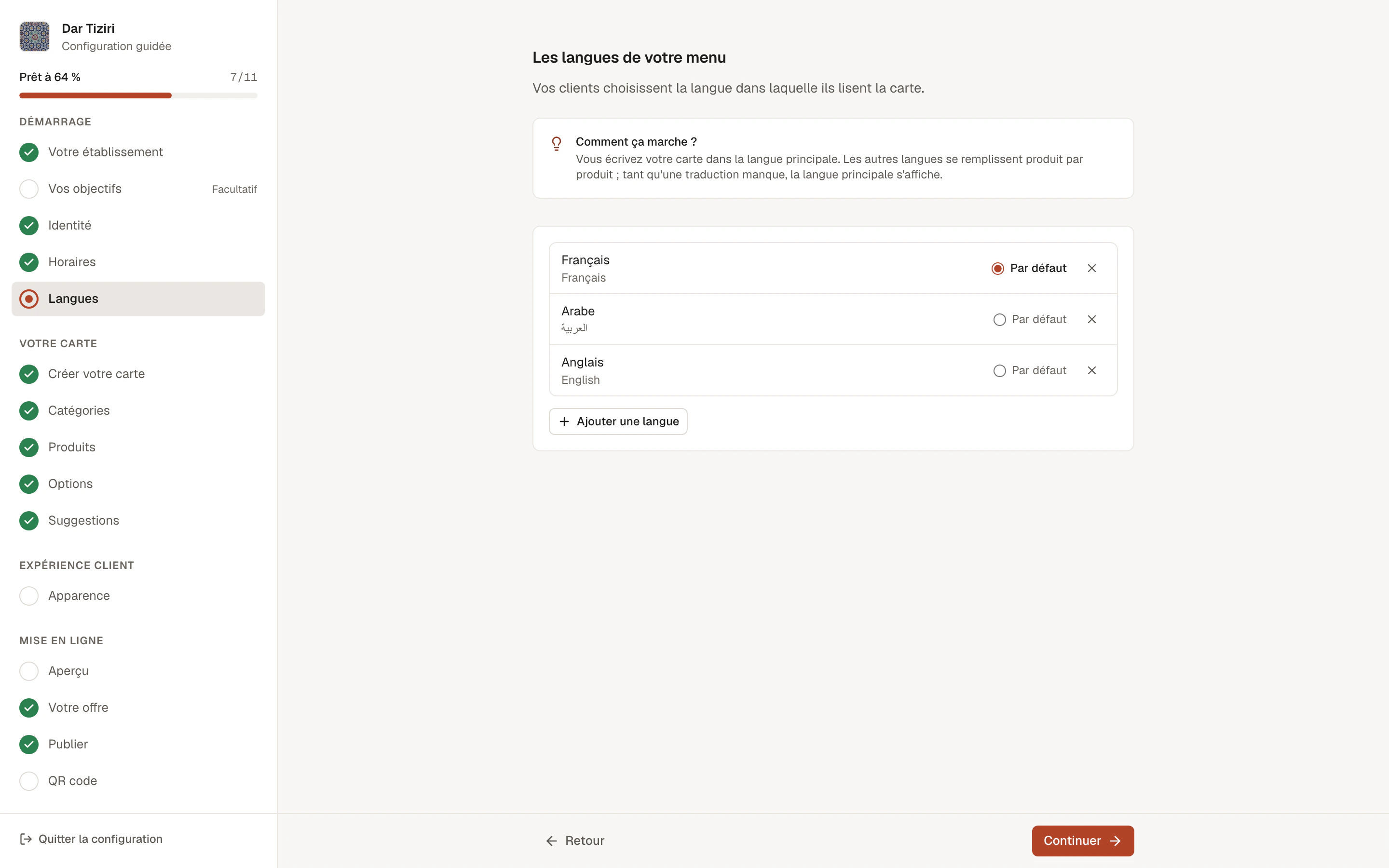
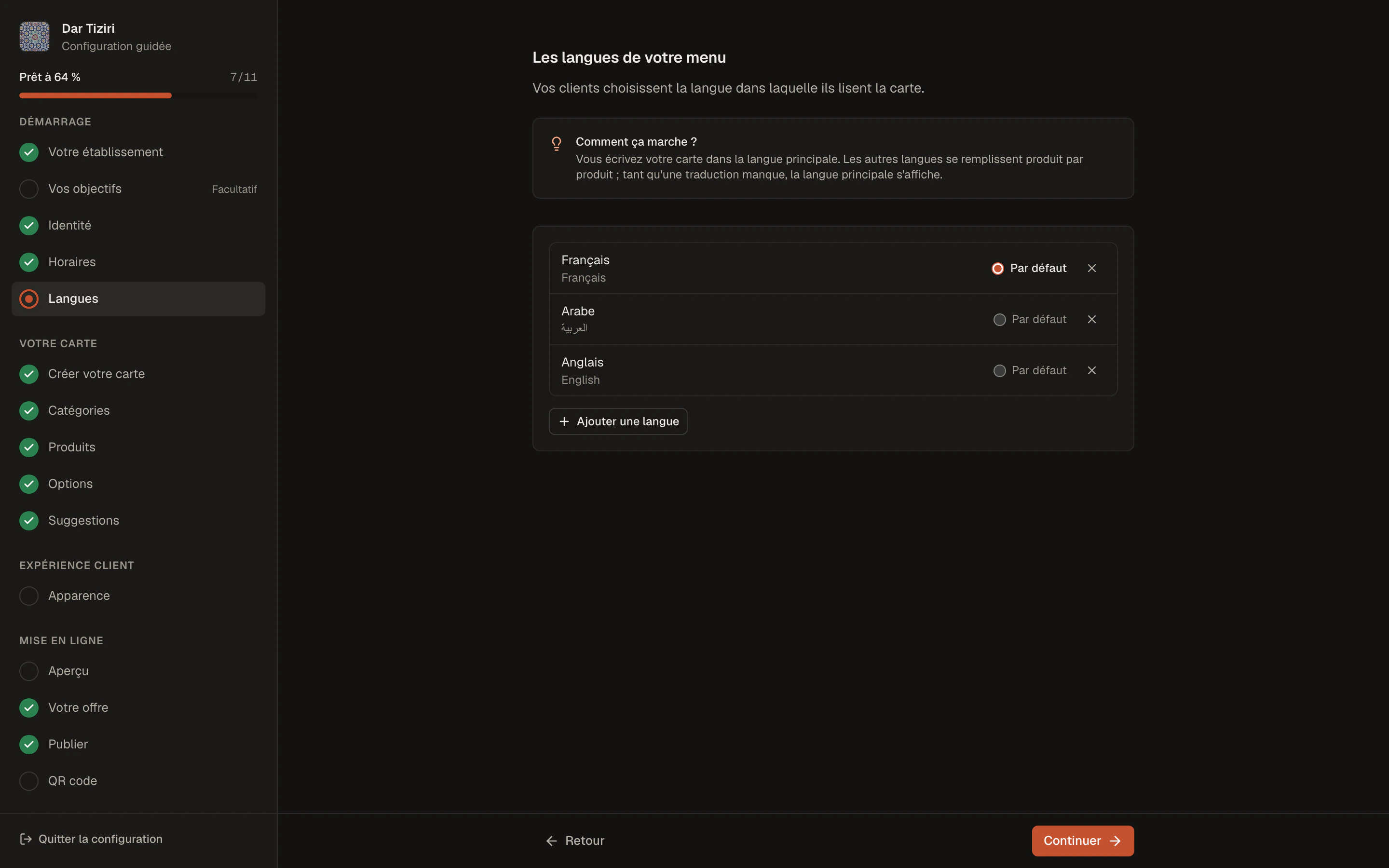
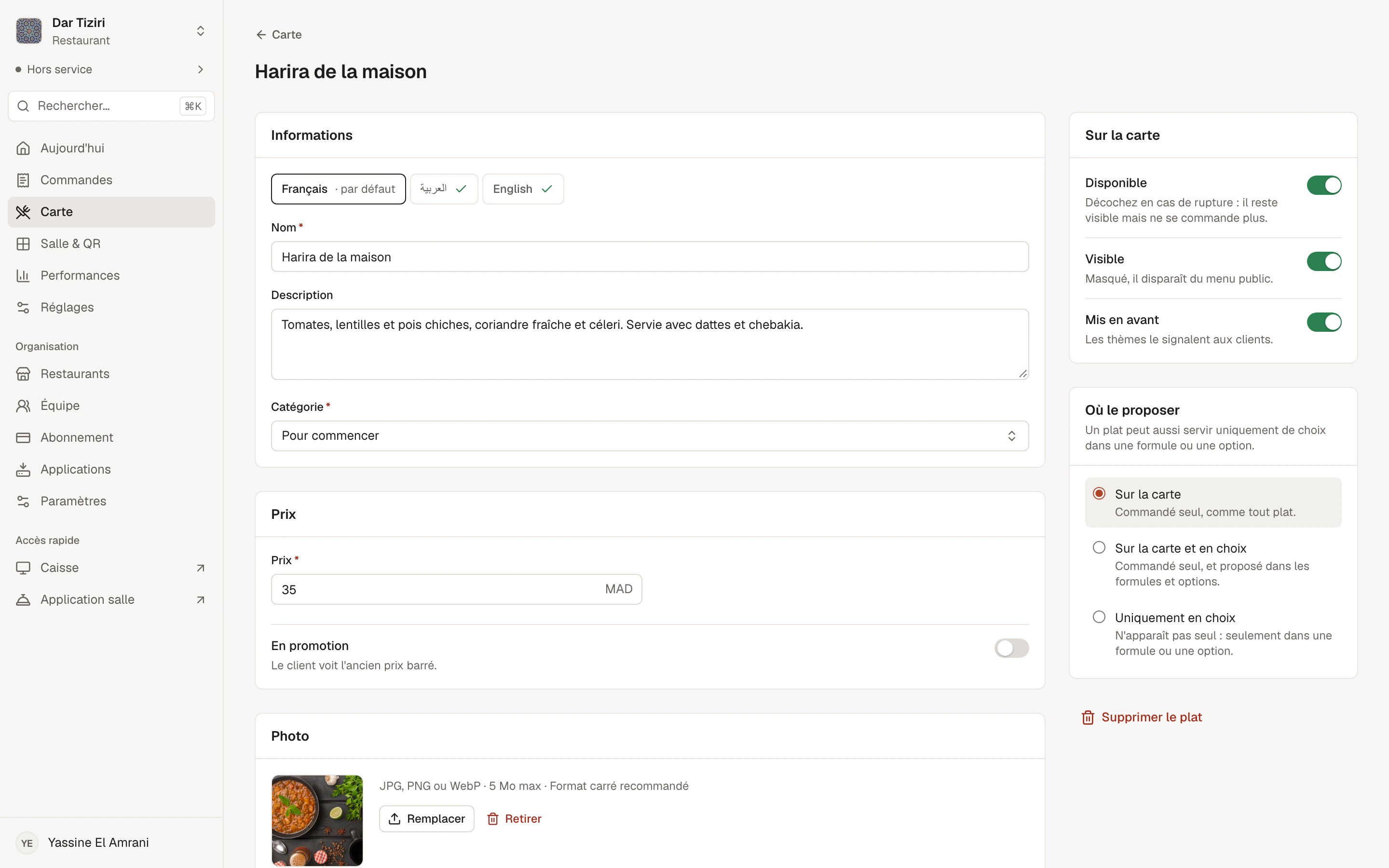
    A restaurant's guided setup, step by step, with its progress.
  2. 2Restaurant

    Add your restaurant

    The guided setup takes you through four stages — Getting started, Your menu, Guest experience, Going live — and shows your progress. Start with the type of business, identity, opening hours and languages.

    • Name, logo, cover photo, contact details
    • Opening hours, including services that run past midnight
    • Currency, VAT and menu languages
    A restaurant's guided setup, step by step, with its progress.
  3. 4Dishes

    Add your dishes

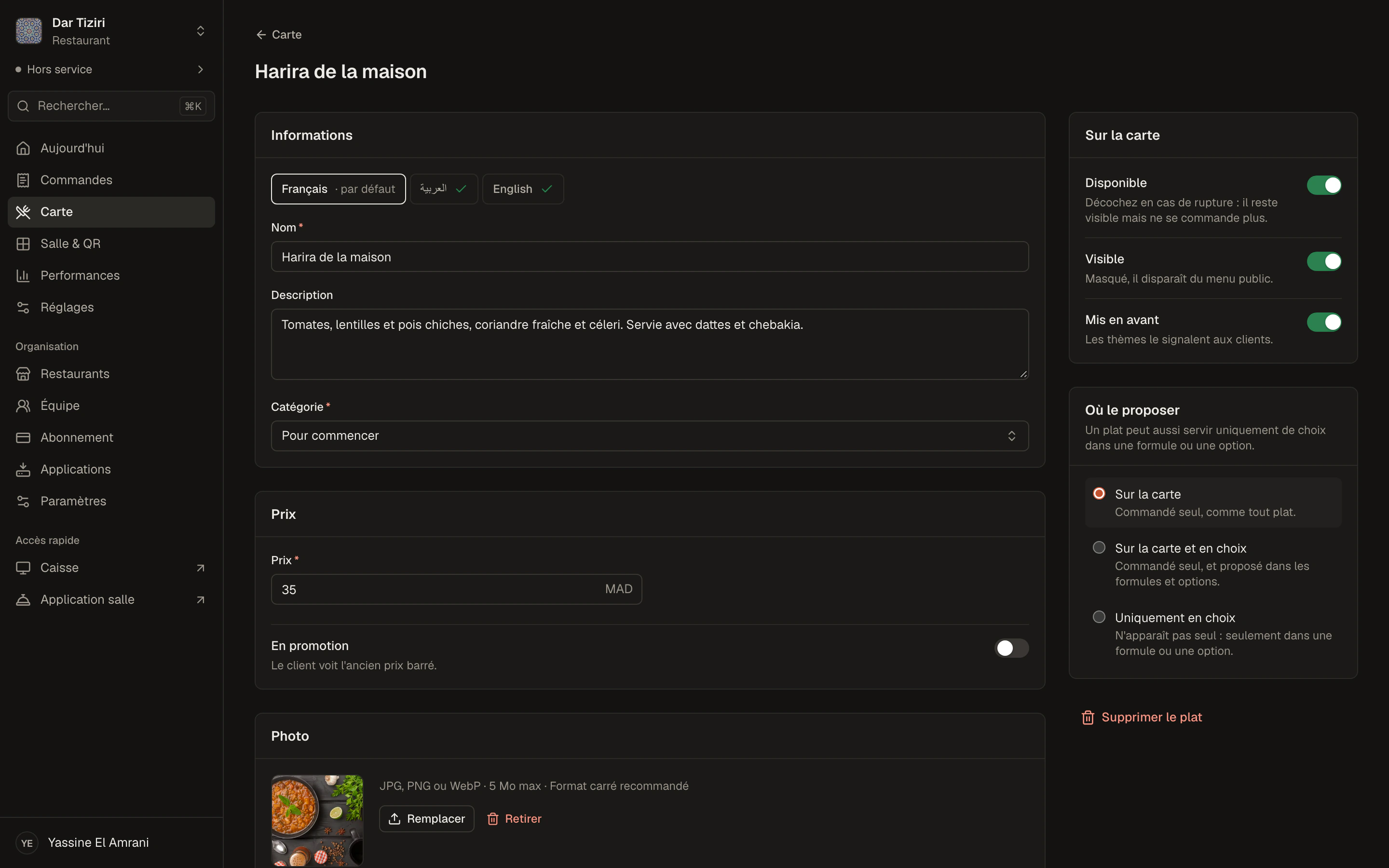
    Each dish gets its photo, description, price and, if needed, a promotional price. Add options (cooking, sides, paid add-ons) and suggestions to offer the customer.

    • Fixed-price set menus
    • Option library shared across dishes
    • Up to 10 suggestions per dish
    A dish's details: photo, name, description, price, availability, options and suggestions.
  4. 5QR codes

    Generate your QR codes

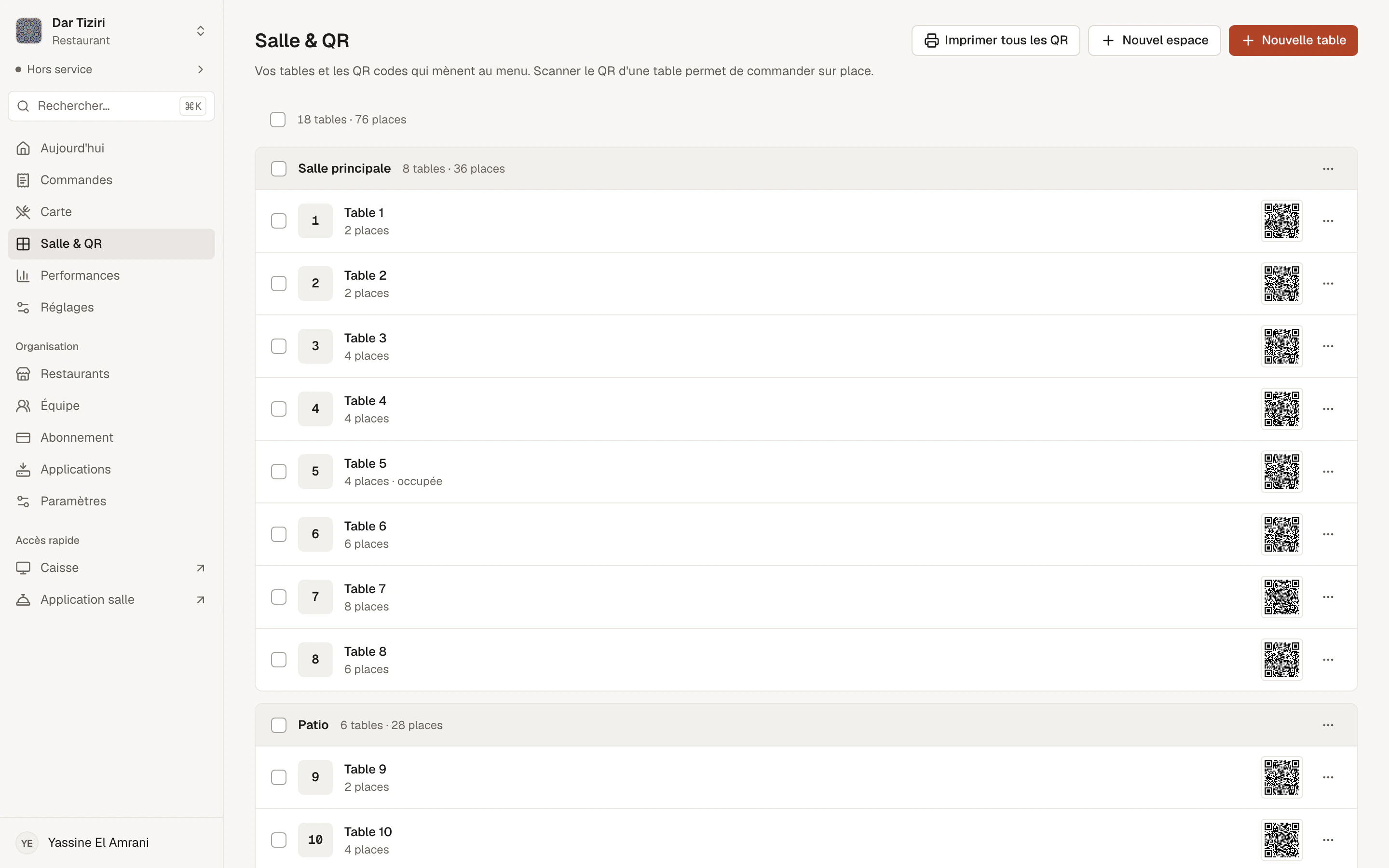
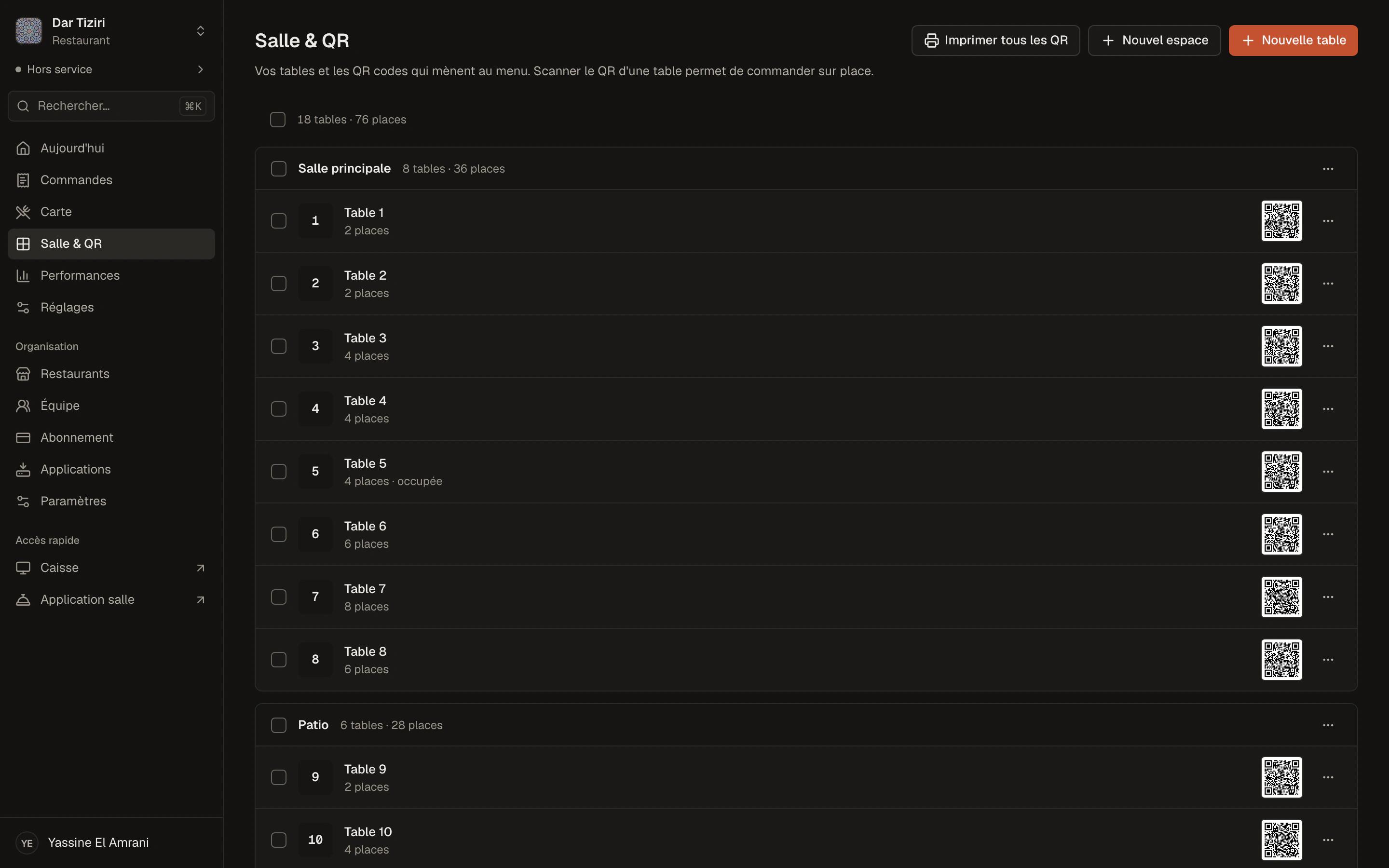
    Create your spaces and tables: each table gets its QR code. Download them one by one or print the A4 sheet for the whole floor. “Takeaway” QR codes are used at the counter.

    • Tables created in bulk
    • Print-ready A4 sheet
    • The QR code does not change when the menu changes
    The QR code in detail
    The Tables & QR page: the restaurant's spaces, each table with its number of seats and its QR code.
  5. 6Customer

    Your customer scans

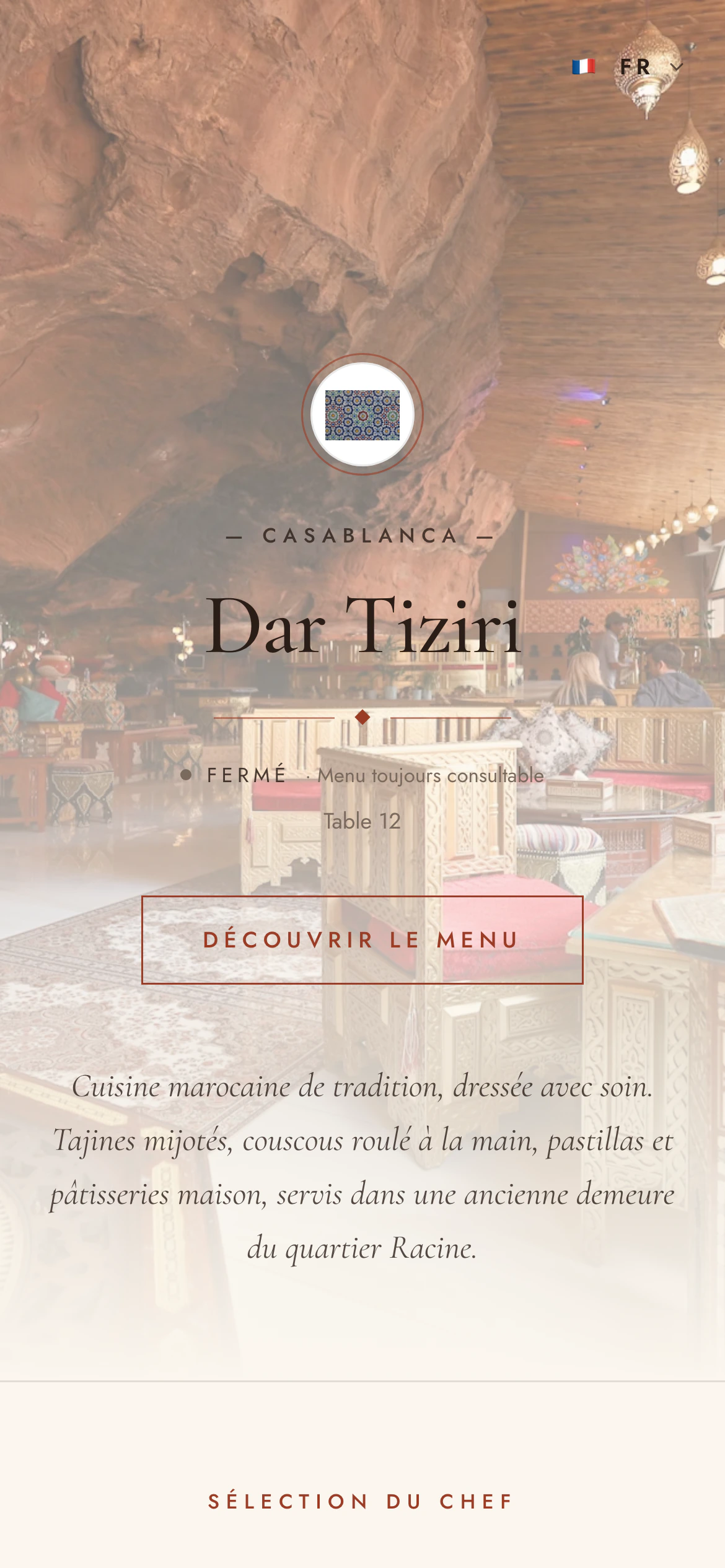
    They point their phone camera at the QR code: the menu opens in their browser, with no app and no account. They browse the menu, search for a dish, switch language.

    • Nothing to install
    • Menu in the chosen language
    • Table recognized automatically
    The menu opened from a table's QR code: the customer orders for their table.
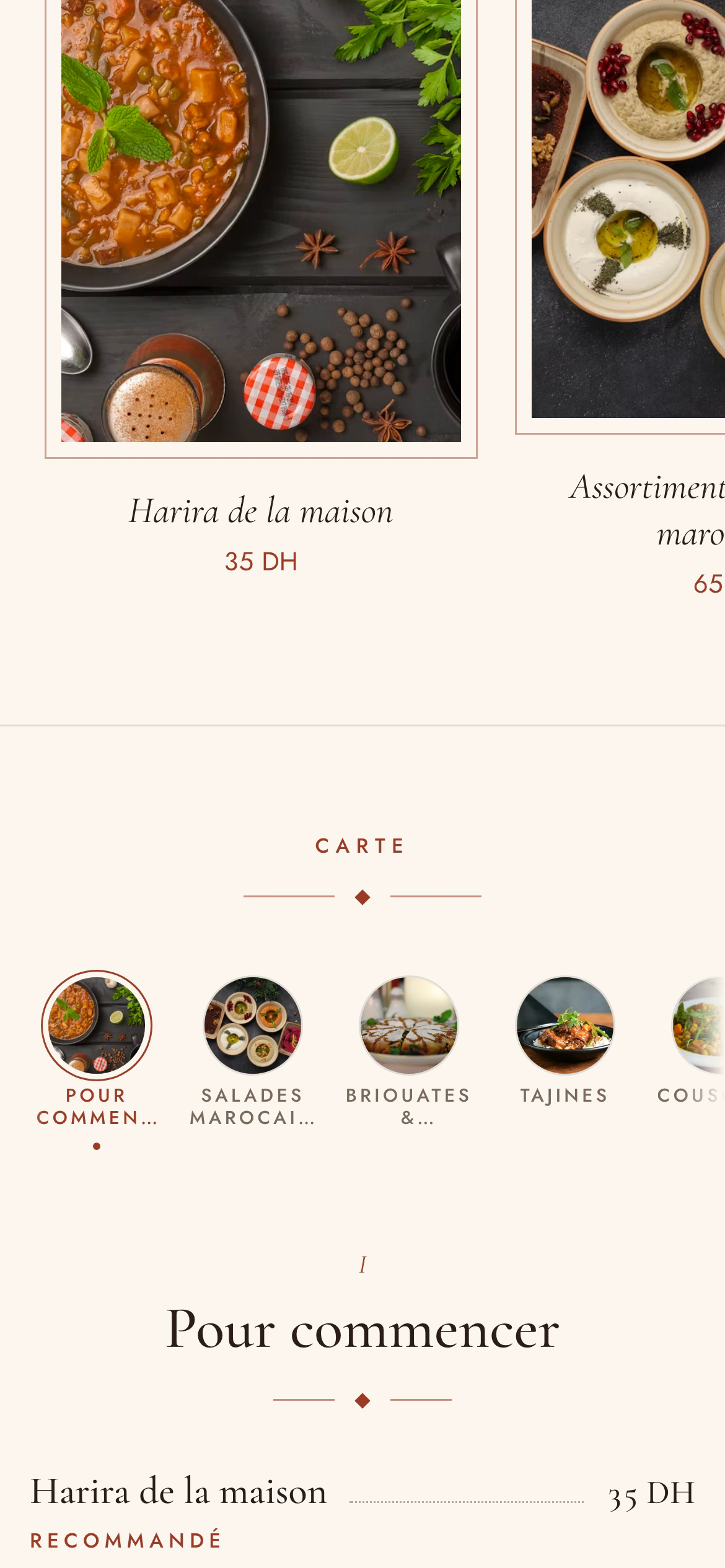
    The categories and dishes of the customer menu, with photos and prices.
  6. 7Order

    They order, you receive

    If you turn on ordering, the customer fills their cart and sends it for their table, or as takeaway. Several phones at the same table share the same cart. The order reaches the team, who accept it and send it to the kitchen.

    • Dine-in or takeaway
    • Order tracking on the customer's phone
    • Payment at the restaurant
    Orders in detail
    QR codeTillServer
    1. 1To accept
    2. 2In the kitchen
    3. 3Ready
    4. 4Served
    5. 5Paid

    Late after 25 min

  7. 8Till

    The till takes payment

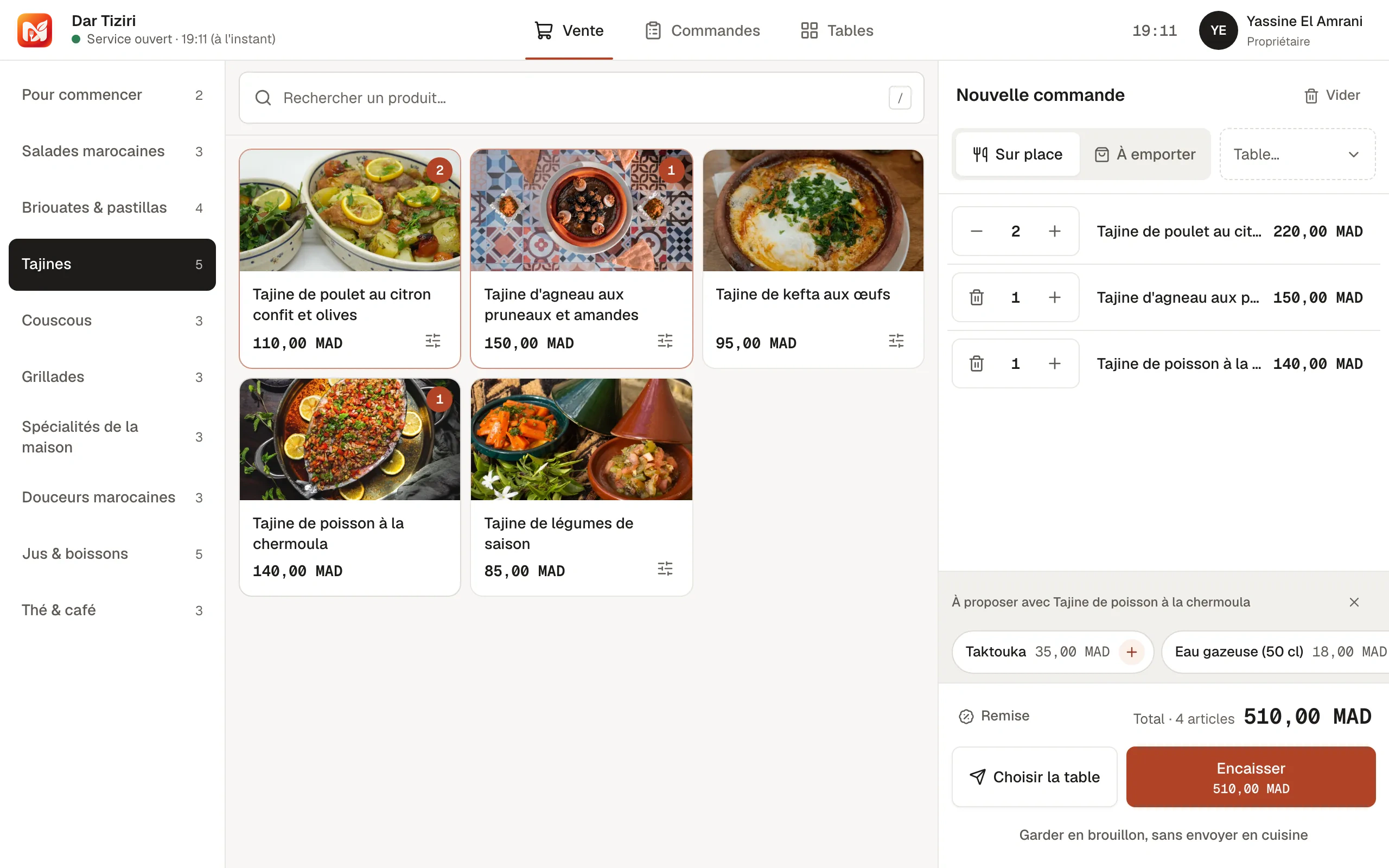
    In Menly Register, orders from the floor and the QR code are already there. The cashier takes payment in cash, card, mobile or other, and closes their till at the end of the service with a summary.

    • Till session with an opening float
    • Change calculated
    • Receipts printed from the desktop app
    The till in detail
    The Menly till: the catalog by category and the current ticket.
  8. 9Performance

    You analyze

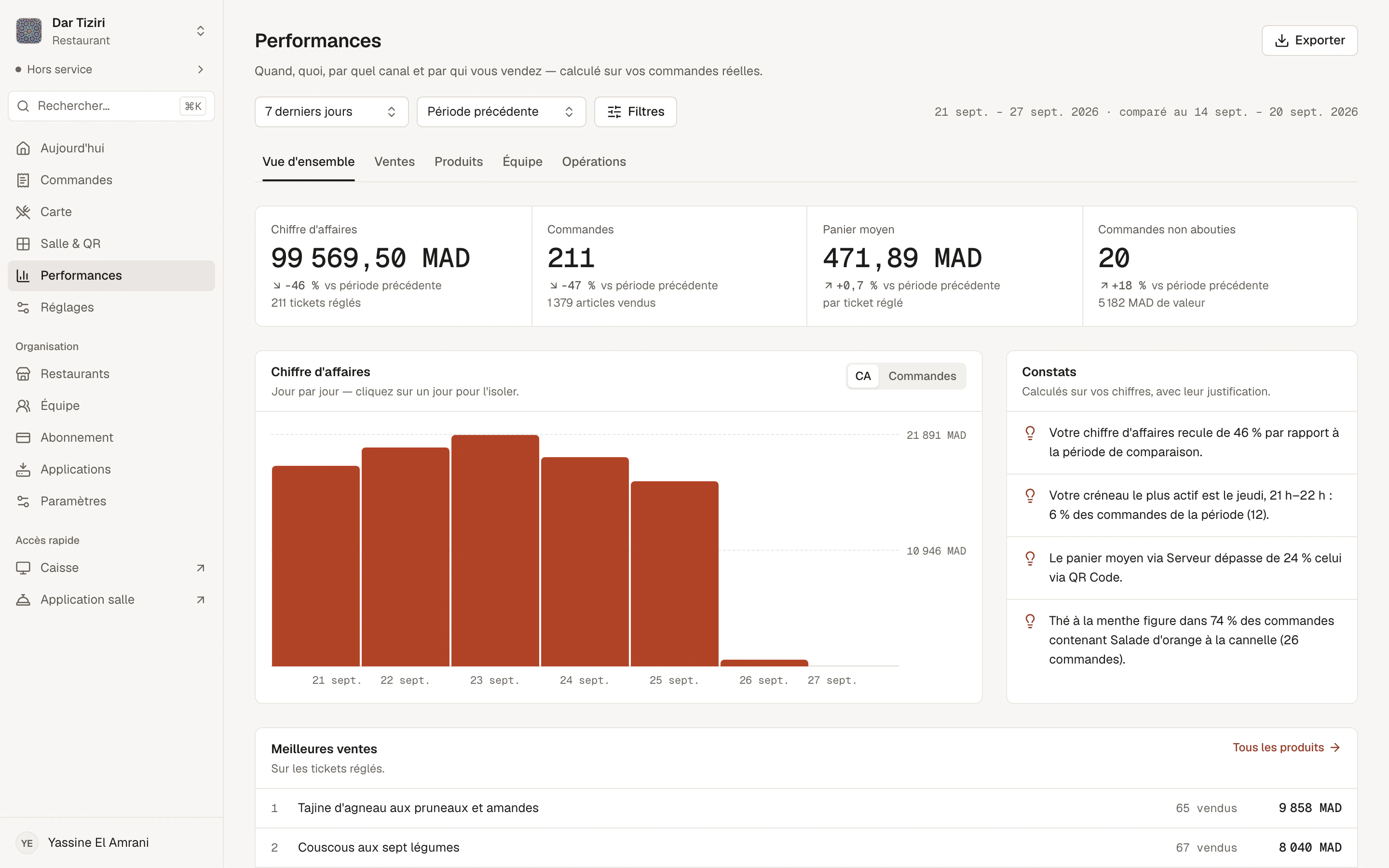
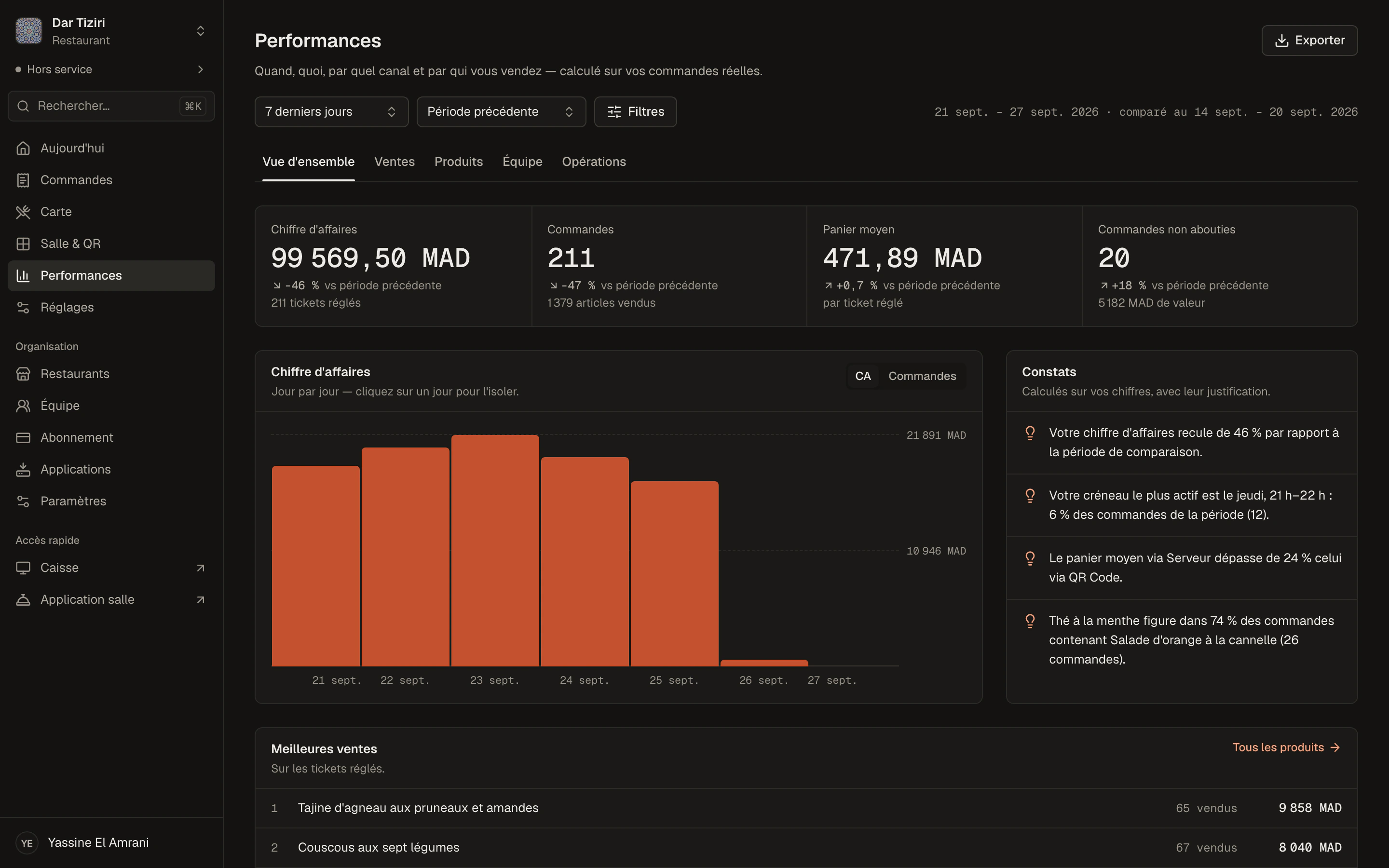
    Every paid order feeds your performance: revenue, average ticket, best sellers, peak hours, team and operations, compared with the period of your choice.

    • Five dashboards
    • Automatically calculated findings
    • CSV export
    Performance in detail
    The performance overview: revenue, orders, average ticket, a day-by-day chart and calculated findings.

And then

Your restaurant changes, Menly keeps up.

  • Up-to-date menu

    A price, a photo, a sold-out dish: the change is visible the next time the menu loads.

  • New hire

    Invite them by email, give them a position: they only see what concerns them.

  • New location

    Add a restaurant to your organization, with its own menu and its own floor.

Ready to start?

The guided setup is waiting in your dashboard.